

- June 10, 2026
- by Shifline Team
- 8 minutes read
How to Connect API.NSW Security Licence Verification to Shifline
In NSW, workforce compliance for security companies involves checking the authenticity of security licenses. All security guards are required to have a valid license, and business are accountable for ensuring that the employees and contractors with which they are working are compliant with the requirements before they do so.
License verification is traditionally a manual process with multiple data entry and constant monitoring of license status on the public registers. This can be effective if your company has a small security team but is not feasible if you are hiring more personnel.
The NSW Government offers a solution via the API.NSW Security API: The API that enables access to license verification data for businesses. This data can be used to automate license validation and streamline compliance processes when connected to Shifline.
This guide explains the complete process—from obtaining your API.NSW credentials to enable them to be set up in Shifline, so that licence verification takes place seamlessly in the background.
Why Connect API.NSW to Shifline?
The API.NSW Security API provides access to the NSW Public Security Register, allowing systems to verify security licence information in real time.
By connecting the API to Shifline, businesses can:
- Verify security licences automatically
- Reduce manual compliance checks
- Improve onboarding efficiency
- Minimise administrative workload
- Maintain accurate workforce records
- Ensure guards have valid licences before deployment
Instead of manually searching licence records every time a new employee joins the organisation, Shifline performs these checks automatically using your API.NSW credentials.
What You’ll Need Before Starting:
Before configuring the integration, make sure you have:
- A registered API.NSW account
- Access to the Security API product
- An active Security API subscription
- Your API Key
- Your Authorization Header
- Administrator access to your Shifline account
If you do not yet have API.NSW credentials, the first part of this guide will walk you through obtaining them.
Step 1: Create Your API.NSW Account:
The first step is creating an account on the API.NSW portal.
Visit the API.NSW registration page and complete the signup form.
You will be asked to provide:
- First Name
- Last Name
- Email Address
- Email Confirmation
- Agreement to Terms and Conditions
Using a business email address is recommended, particularly if multiple administrators may need access in the future.
Once all required information has been entered, submit the registration form.
Step 2: Verify Your Email Address:
After registering, API.NSW will verify the email address you used when signing up via an email to your address.
Click on the verification link that is contained within the e-mail.
This will trigger your account and enable you to use the API catalogue and subscription services.
- If you don’t find the e-mail, look at:
- Spam folder
- Junk folder
- Email filtering rules
Once your account is verified, return to the API.NSW portal and log in.
Step 3: Access the Security API Product:
After logging in, navigate to the Security API product page.
You can locate it by:
- Opening the API Catalogue
- Searching for “Security”
- Selecting the Security API product
The product page contains information about:
- API capabilities
- Documentation
- Usage limits
- Available endpoints
- Subscription options
Review the information provided to familiarise yourself with the service before proceeding.
Step 4: Subscribe to the Security API:
To generate your credentials, you must subscribe to the Security API.
On the product page:
- Scroll to the Access this API section.
- Click Subscribe.
- Confirm your subscription.
Once the subscription has been activated, API.NSW will generate credentials associated with your account.
These credentials will be required when configuring Shifline.
Step 5: Locate Your API Credentials:
After subscribing, you will see two important values displayed on the Security API page.
API Key:
The API Key identifies your account whenever requests are made to the API.
Every request sent from Shifline will include this value.
Authorization Header:
The Authorization Header is used to generate OAuth authentication tokens that permit secure communication with the API.
Both credentials are required for successful integration.
It is important to keep these values secure because they provide access to your API subscription and usage quota.
Avoid:
- Sharing credentials publicly
- Including credentials in screenshots
- Storing credentials in unsecured documents
- Publishing credentials in code repositories
Copy both values and keep them available for the next stage of setup.
Step 6: Log In to Shifline:
Once your API credentials have been obtained, sign in to your Shifline account.
You must use an account with administrative permissions because compliance settings can only be modified by authorised users.
After logging in, open the main navigation menu.
Navigate to:
Company Settings → Compliance:
This section contains configuration options related to workforce compliance and licence verification.
Step 7: Open NSW Security Licence Verification Settings:
Inside the Compliance section, locate the area labelled:
NSW Security Licence Verification:
This is where your API.NSW credentials will be stored.
You should see fields for:
- API Key
- Authorization Header
These fields connect your Shifline account to the NSW Government’s Security API service.
Step 8: Enter Your API Credentials:
Return to the API.NSW portal and copy the credentials you generated earlier.
Paste them into the corresponding fields in Shifline.
API Key Field:
Paste your API Key exactly as provided by API.NSW.
Authorization Header Field:
Paste your Authorization Header exactly as provided.
Take care to avoid:
- Missing characters
- Additional spaces
- Partial copies
- Formatting changes
Even minor alterations can cause authentication failures.
Once both fields have been completed, review them carefully before saving.
Step 9: Save Your Credentials:
Click the Save Credentials button.
Shifline will securely store the information and prepare the integration for use.
Your credentials are encrypted and managed securely within the platform.
You only need to complete this process once unless your API.NSW credentials change in the future.
Step 10: Enable NSW Security Licence Verification
After saving your credentials, locate the toggle labelled:
NSW Security Licence Verification:
Switch the toggle to the enabled position.
This activates automated licence verification throughout the platform.
Once enabled, Shifline will begin communicating with API.NSW whenever licence validation is required.
Step 11: Test the Integration:
Before relying on the integration in daily operations, it is advisable to perform a test.
Create a security guard profile using a valid NSW security licence number.
When the profile is saved, Shifline should:
- Connect to API.NSW.
- Submit a verification request.
- Retrieve licence information.
- Display the verification status.
Successful validation confirms that the integration has been configured correctly.
What Happens After Setup?
Once configured, licence verification becomes part of your normal workforce management process.
Every time a new security guard is added, Shifline automatically checks licence information through API.NSW.
This eliminates the need for separate manual verification procedures.
The verification process runs in the background and requires no additional action from administrators.
Information Retrieved During Verification:
Depending on the available records, Shifline may retrieve information such as:
- Licence validity
- Licence status
- Licence class
- Approved security activities
- Expiry date
- Licence holder details
This information helps organisations maintain accurate workforce records and ensure compliance requirements are met.
How Automated Verification Improves Operations:
Manual licence verification often creates unnecessary administrative work.
Staff may need to:
- Search government registers
- Enter information manually
- Track licence expiry dates
- Repeat verification processes
As workforce numbers increase, these tasks consume valuable time and increase the likelihood of human error.
By automating verification through API.NSW, Shifline allows businesses to streamline these processes and focus on operational priorities.
Common Setup Issues and How to Resolve Them:
Credentials Are Not Saving:
Ensure that both required fields have been completed correctly.
Verify that:
- The API Key is complete
- The Authorization Header is complete
- No additional spaces have been added
Verification Requests Fail:
Confirm that:
- Your API.NSW subscription is active
- Credentials were copied correctly
- The Security API remains available on your account
Authentication Errors:
If authentication errors occur, review the Authorization Header entered into Shifline and compare it with the value displayed in API.NSW.
Any differences should be corrected before retesting.
Licence Record Not Found:
If a licence cannot be located:
- Verify the licence number
- Check for typing errors
- Confirm the licence belongs to NSW
- Ensure all digits have been entered correctly
Security and Data Protection:
API credentials provide access to government services and should always be protected.
Shifline helps secure these credentials by:
- Encrypting stored credentials
- Restricting access to authorised administrators
- Using secure backend communication
- Preventing exposure to end users
These measures help protect sensitive information while maintaining reliable verification services.
Benefits of Connecting API.NSW to Shifline:
Once configured, businesses benefit from:
- Faster employee onboarding
- Automated licence verification
- Reduced compliance workload
- Improved record accuracy
- Better operational efficiency
- Reduced risk of deploying unlicensed personnel
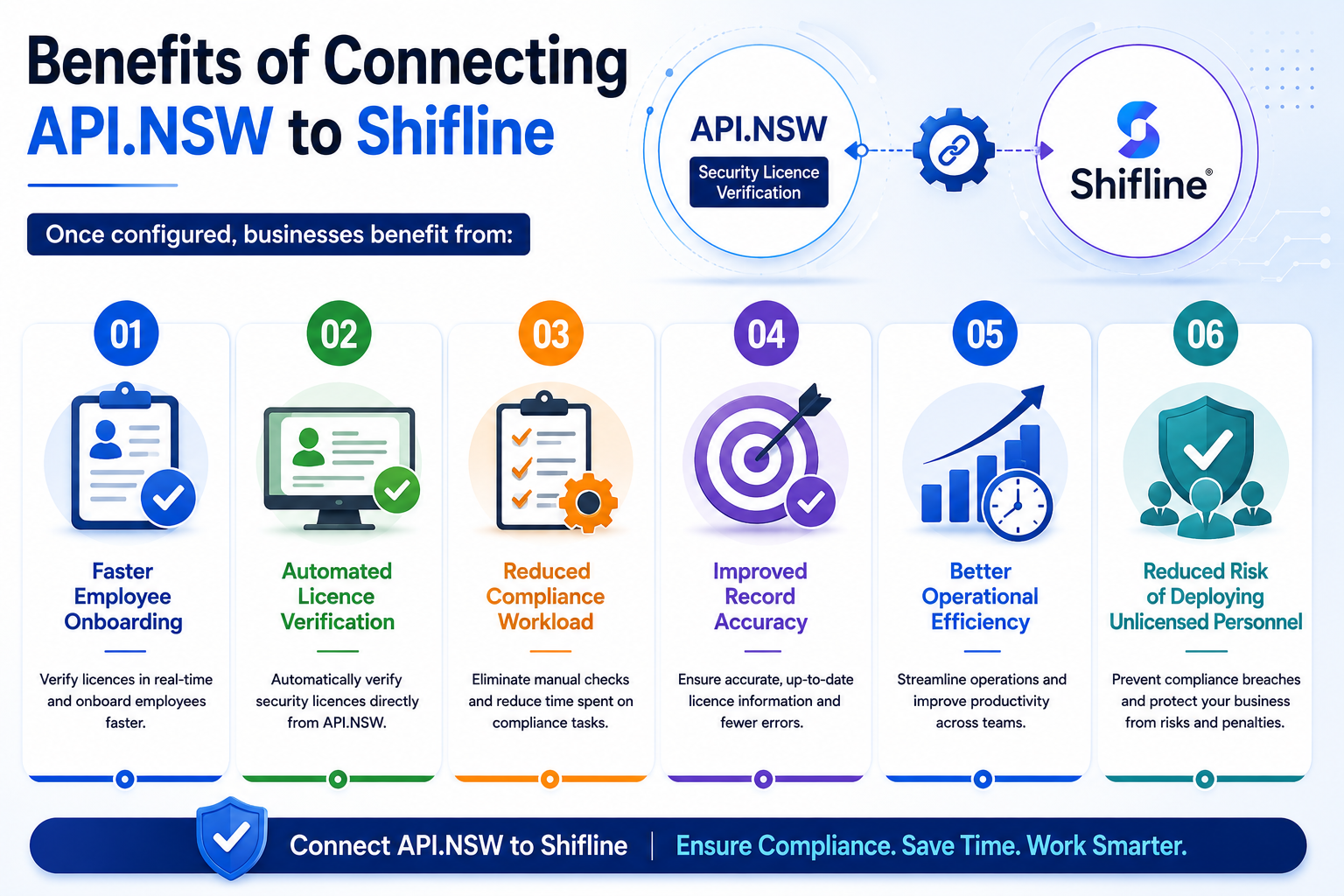
These advantages become increasingly valuable as workforce numbers grow.
Final Thoughts:
Connecting API.NSW Security Licence Verification to Shifline is a straightforward process that can significantly improve compliance management for security businesses operating in New South Wales.
After creating an API.NSW account, subscribing to the Security API, and obtaining your API Key and Authorization Header, all that remains is entering those credentials into Company Settings → Compliance within Shifline.
License verification is an automated process after it has been enabled, continuing in the background as security personnel are added and managed in the platform.
Shifline helps organizations save time, minimize manual effort, enhance compliance accuracy and ensure that only licensed security employees are assigned to jobs, all through the combination of government license information and workforce automation.